Registration
Follow these five steps to start using the API:
- Register - Create an API consumer, your application's registered access to the API
- Get approval - Firstbeat activates your API consumer
- Grant access - Your Coach authorizes data access
- Authenticate - Implement secure API authentication (api key, JWT)
- Test the connection - Verify everything works
Create API Consumer
First step is to create an API consumer. Think of it as your application's identity card for accessing the API. It identifies who you are and controls which team data you can access.
Pick a name that unambiguously identifies the organization, department or individual who will control the API registration. At best, this is a clear, human-readable name like "Firstbeat Technologies". Make a POST request to the registration endpoint:
You'll receive credentials for your API consumer:
{
  "id": "87a05c83-d5b7-46ba-aa4a-32f56cd284d5",
  "consumerName": "Fitview Analytics Ltd",
  "sharedSecret": "8d5b6d12-61c5-4303-9ae3-c1837a15034b"
}
Save these credentials securely. You'll need:
id- identifies your API consumer to FirstbeatsharedSecret- needed to generate authentication tokens (keep this private)
Choose a clear consumer name
Your consumerName is visible to your team in Sports Cloud. Firstbeat support identifies your integration using the id.
Choose names that identify your organization:
- ✅ "Fitview Analytics Ltd" - clear organization + purpose
- ✅ "Potato AMS" - uses official name
- ✅ "Jyväskylä Bears Analytics" - specific and descriptive
Avoid vague names:
- ❌ "joes api consumer" - doesn't identify anyone
- ❌ "abc_1231541" - meaningless string
- ❌ "UNI_BST" - unclear abbreviation
- ❌ "Firstbeat API test" - do not use 'Firstbeat' in the name
You can use spaces and capital letters. You can't change the name later.
Avoid multiple registrations
Each call to /account/register creates a new API consumer with a unique ID, even if you use the same name. If you accidentally create duplicates, don't worry - unapproved consumer registrations are not visible to anyone.
Ask Firstbeat to Approve your API Consumer
Send your consumer details to Firstbeat support for activation. Email sports-cloud-api@firstbeat.com with:
- Your
consumerNameandid - Customer account names to link (e.g., "Jyväskylä Bears", "Acme Ice Hockey Club")
- Contact people for API notifications (name + email)
Email template:
Subject: New API consumer approval

Hi,

I have created a new Sports Cloud API consumer:

* consumerName: Fitview Analytics Ltd
* id: 87a05c83-d5b7-46ba-aa4a-32f56cd284d5

Please connect this consumer to customer accounts:
- Jyväskylä Bears
- Acme Ice Hockey Club

Contact info for API updates:
- John Doe, john.doe@acme.com (developer)
- Joe Doe, joe.doe@acme.com (team manager)

Best regards,
John Doe
What happens next
Firstbeat will approve your consumer and link it to the specified accounts. You'll receive an email confirmation when approved. The API consumer won't be visible in Sports Cloud until this step is complete.
Grant Access To Data
Once Firstbeat has approved your consumer, a Coach on your team must authorize it to access account data in Sports Cloud.
Your team controls data access
For security, teams retain full control over which API consumers can access their data. Only Coaches can grant or revoke API access - ensuring your team decides who can integrate with your account. If you don't have Coach permissions, ask your team's Coach to complete this authorization step.
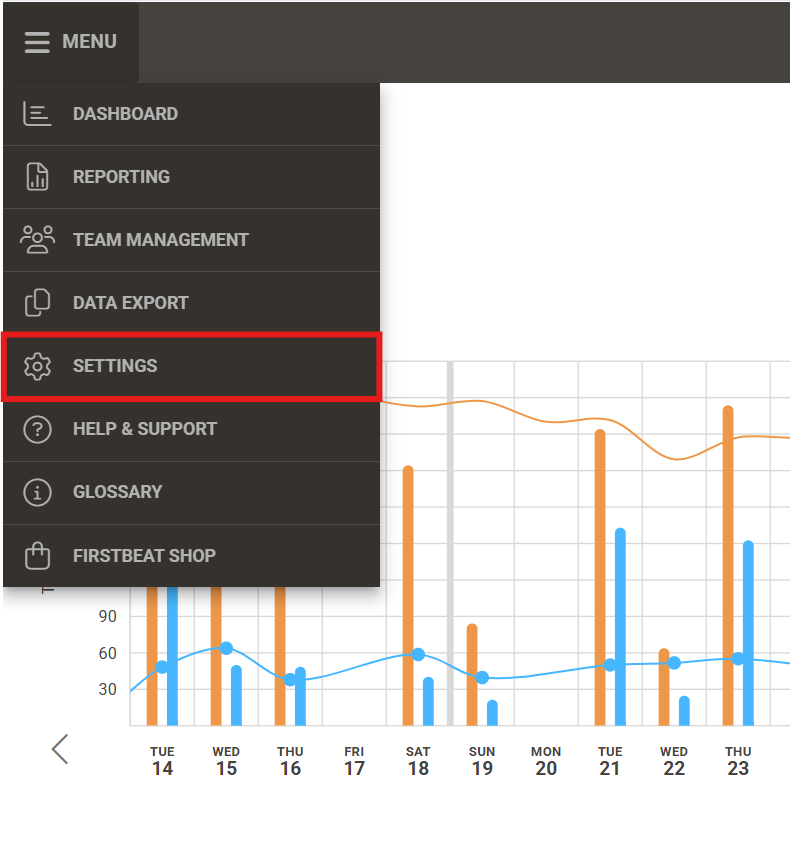
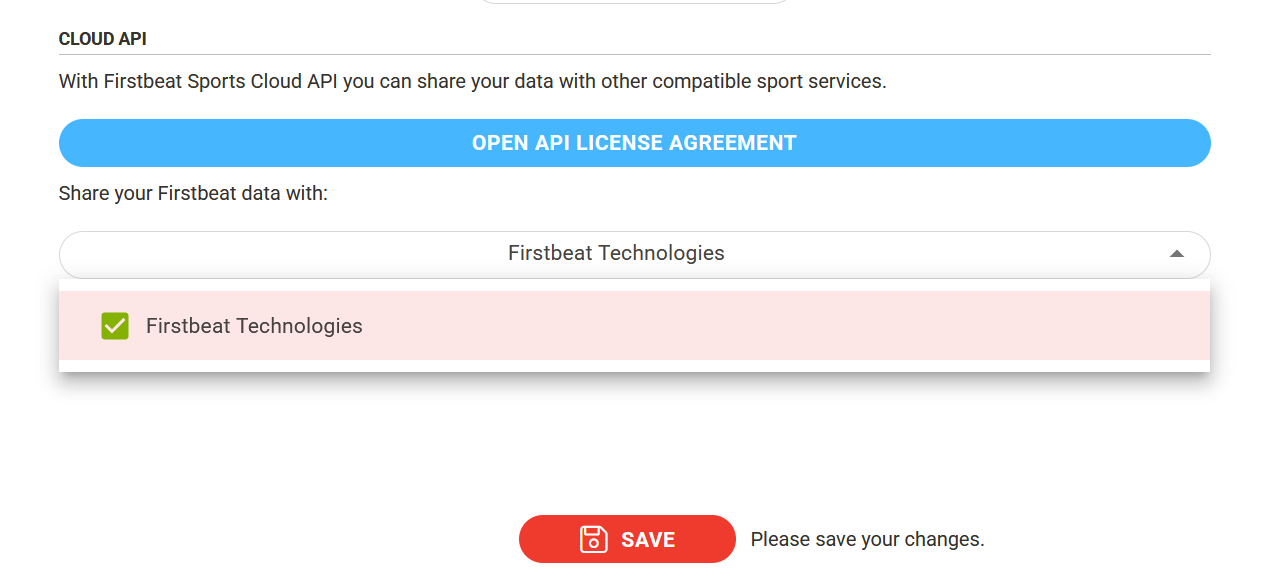
Steps in Sports Cloud:
- Go to sports.firstbeat.com
- Click the settings menu (top left corner)
- Navigate to Cloud API section
- Accept the license agreement (if not already accepted)
- Select your API consumer from the list
- Check the account checkbox to grant access
- Save settings
Info
If your API consumer isn't visible in the list, it hasn't been approved yet or isn't linked to your account. Contact sports-cloud-api@firstbeat.com.
Implement JWT Creation
Implement JWT (JSON Web Token) generation in your application using your consumer id and sharedSecret. JWTs are used along with API keys to authenticate API requests.
Token expiration
Tokens must be valid for a maximum of 5 minutes.
import jwt
import time

def create_jwt_token(consumer_id: str, shared_secret: str) -> str:
    """Generate a JWT token valid for 5 minutes."""
    now = int(time.time())
    payload = {
        "iss": consumer_id,
        "iat": now,
        "exp": now + 300  # 5 minutes
    }
    return jwt.encode(payload, shared_secret, algorithm="HS256")

# Usage
token = create_jwt_token(
    consumer_id="87a05c83-d5b7-46ba-aa4a-32f56cd284d5",
    shared_secret="8d5b6d12-61c5-4303-9ae3-c1837a15034b"
)
print(f"Bearer {token}")
const jwt = require('jsonwebtoken');

function createJwtToken(consumerId, sharedSecret) {
    const now = Math.floor(Date.now() / 1000);
    const payload = {
        iss: consumerId,
        iat: now,
        exp: now + 300  // 5 minutes
    };
    return jwt.sign(payload, sharedSecret, { algorithm: 'HS256' });
}

// Usage
const token = createJwtToken(
    '87a05c83-d5b7-46ba-aa4a-32f56cd284d5',
    '8d5b6d12-61c5-4303-9ae3-c1837a15034b'
);
console.log(`Bearer ${token}`);
Token format in API requests:
Authorization: Bearer eyJ0eXAiOiJKV1QiLCJhbGciOiJIUzI1NiJ9.eyJpc3MiOiJjMzhlMjU2ZC0xMWVlLTRmNWQtYWI0NS1iNjJkMDU3NGE3ZmQiLCJpYXQiOjE1ODg2NzQxNzYsImV4cCI6MTU4ODY3NDQ3Nn0.BQpPdmyM4KikNFIRisKdOkFRCADCA1bQpKUzBUWy3QA
JWT structure
JWTs use the HMACSHA256 algorithm with your shared secret. They consist of three Base64-encoded parts separated by dots:
- Header - token type and algorithm
- Payload - issuer (your consumer ID), issued-at time, expiration time
- Signature - HMAC hash of header + payload + secret
Learn more at jwt.io
For more complete code examples including full authentication workflows, see the Sample Code page.
Retrieve your API Key
Retrieve your API key by calling the account/api-key endpoint with a valid JWT:
import requests

# Generate JWT first (using function from previous step)
token = create_jwt_token(consumer_id, shared_secret)

response = requests.get(
    "https://api.firstbeat.com/v1/account/api-key",
    headers={"Authorization": f"Bearer {token}"}
)

api_key = response.json()["apikey"]
print(f"API Key: {api_key}")
Response:
API key format in requests:
API key is permanent
Your API key is generated once and remains the same if you call this endpoint again. Store it securely alongside your consumer credentials.
Authentication summary
Authentication requirements for Firstbeat Sports Cloud API endpoints:
/account/register- No authentication required/account/api-key- JWT only (Authorization header)- All other endpoints - Both JWT and API key (Authorization header + x-api-key header)
Test Access
Verify your setup by listing the accounts your consumer can access:
import requests

# Use both JWT and API key
token = create_jwt_token(consumer_id, shared_secret)

response = requests.get(
    "https://api.firstbeat.com/v1/sports/accounts",
    headers={
        "Authorization": f"Bearer {token}",
        "x-api-key": api_key
    }
)

accounts = response.json()
print(f"Connected accounts: {len(accounts['accounts'])}")
for account in accounts['accounts']:
    print(f"  - {account['name']} (ID: {account['accountId']})")
Success response:
{
  "accounts": [
    {
      "accountId": "3-12345",
      "name": "Jyväskylä Bears",
      "authorizedBy": {
        "coachId": 67890
      }
    },
    {
      "accountId": "3-67891",
      "name": "Acme Ice Hockey Club",
      "authorizedBy": {
        "coachId": 45678
      }
    }
  ]
}
You're ready to integrate!
If you see your accounts listed, you've successfully completed the registration process. You can now:
- Review Sample Code for examples
- Check the API Specification for endpoint details
No accounts returned?
If the response is empty or missing expected accounts, verify:
- Firstbeat approved your consumer and linked it to the correct accounts
- A Coach granted access in Sports Cloud settings